How to Take Dine-in Orders and Fire Kitchen Order Tickets (KOT)
Kitchen Order Tickets (KOT) coordinate communication between the front-of-house service staff and the back-of-house kitchen brigade. In Innoventry, orders fired from tables route instantaneously to designated thermal kitchen printers, ensuring food preparation starts without delay.
1. Opening a Table and Punching Orders
Whether using the desktop POS terminal or the web counter interface, taking an order follows a streamlined process:
- From the floor plan view, click on any Available (Green) table to open the order sheet.
- Optionally enter the number of guests/covers to track per-cover metrics.
- Search or click menu items from the categorized menu list (e.g., Starters, Main Course, Breads, Beverages).
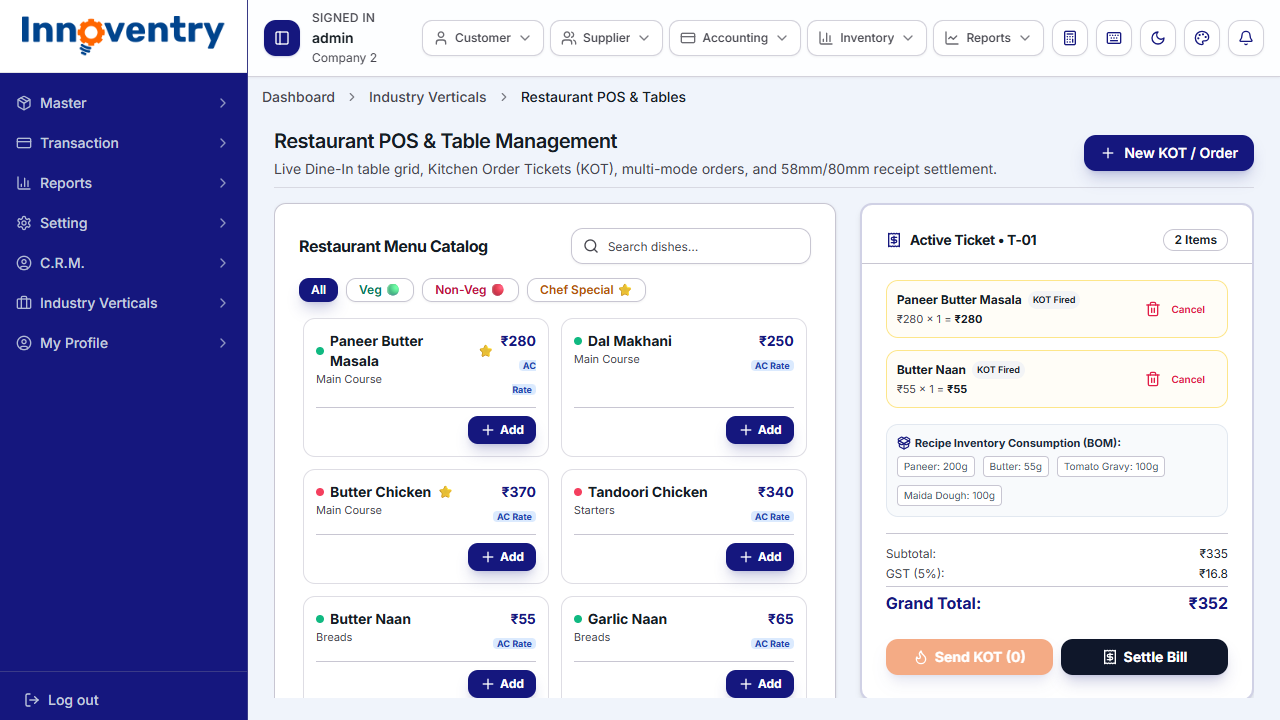
- Items appear on the right-hand order panel with portion sizes, quantities, and applicable tier rates.
2. Adding Cooking Notes & Preparation Modifiers
Special guest dietary preferences and preparation notes can be attached directly to individual order lines:
- Click on the Note icon next to an item in the order sheet.
- Type instructions such as "Make Less Spicy", "No Onion/Garlic", or "Serve Without Ice".
- These instructions print prominently in bold on the physical thermal kitchen ticket.
3. Firing the KOT (Kitchen Order Ticket)
Once the guest order is finalized:
- Click Fire KOT (or press the keyboard shortcut
Ctrl + K). - Innoventry analyzes the items in the order and routes them to their designated preparation stations:
- Main Kitchen Thermal Printer: Curries, gravies, and rice dishes.
- Tandoor Thermal Printer: Naans, rotis, kebabs, and tikkas.
- Bar / Beverage Thermal Printer: Mocktails, juices, soft drinks, and beverages.
- The table status turns Amber (Occupied). Newly added items are tagged as fired, and the draft list resets for subsequent courses.
4. Managing Running Tables & Repeat Orders
When guests order additional items later during their meal:
- Click the Occupied table on the floor plan.
- The existing order summary displays currently fired items alongside the running balance.
- Add the newly requested dishes. These appear as draft additions.
- Click Fire KOT. Innoventry generates an incremental ticket labeled KOT #2 (Running Order) containing only the newly added items, avoiding any kitchen duplication.
5. Audited Item Cancellations & Void Reasons
To eliminate unauthorized item cancellations and prevent staff pilferage after food has been prepared, Innoventry enforces a strict audit rule on fired KOT items:
- Unfired draft items can be removed freely before sending to the kitchen.
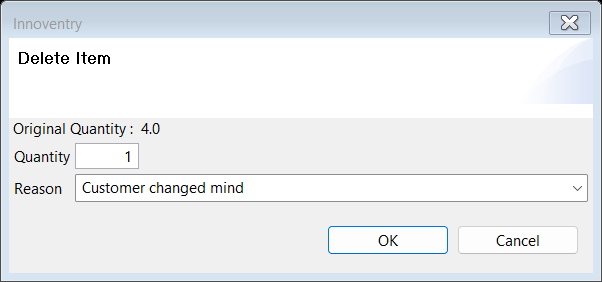
- Once a KOT has been fired, removing an item triggers the Delete Order Item Dialog.
- The user must select or enter an audited reason for cancellation:
- Customer Changed Mind
- Item Out of Stock
- Excess Preparation Delay
- Incorrect Item Punched
- A cancellation ticket is automatically printed in the kitchen to alert the chef to stop preparation.
- All cancelled items, timestamps, users, and reasons are logged in the Void / Cancellation Audit Report for owner review.