
How to Configure 3-Tier Dynamic Pricing (AC, Non-AC, Takeaway)
Most Indian restaurants maintain differentiated pricing models. Guests dining in an air-conditioned family hall enjoy premium ambiance, which incurs higher electricity and interior capital expenditure, whereas casual garden dining or quick takeaway orders have different margin structures. Innoventry provides a built-in 3-Tier Dynamic Pricing Architecture that manages these variations without requiring duplicate menu items.
1. The 3 Pricing Tiers Explained
- Regular (Dining / Non-AC): Base menu price applicable for standard ground floor dining, garden seating, or casual self-service areas.
- AC Premium: Tier rate for air-conditioned dining halls, VIP rooms, or premium lounge sections.
- Takeaway / Delivery: Adjusted price factoring in containers, packaging charges, and delivery platform margins.
2. Setting Tier Prices in the Item Master
To configure 3-tier pricing on your dishes:
- Navigate to Master > Item > Item Master in Innoventry.
- Select an existing food item or click New Item.
- In the Pricing / Rate Slabs section, enter the respective prices:
- Regular Selling Price: e.g., ₹260.00
- AC Rate: e.g., ₹290.00
- Takeaway Rate: e.g., ₹270.00
- Save the item. All three price levels are now linked to a single item code and inventory master.
3. Assigning Pricing Tiers to Dining Sections
Rather than requiring waitstaff to manually select a pricing tier every time they punch an order, Innoventry maps pricing tiers directly to your physical dining sections:
- Open the Table Layout Editor (Restaurant > Table Layout).
- Select a table or an entire dining section (e.g., First Floor AC Hall).
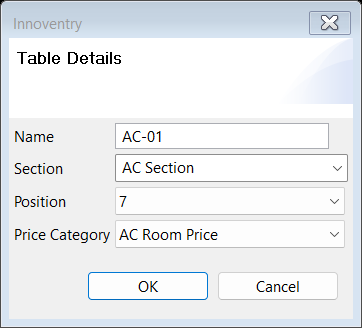
- In the Table Detail Dialog, set the Default Price Category:
- Ground Floor Tables: set to Regular
- First Floor AC Tables: set to AC
- Outdoor Terrace Tables: set to Regular
- Click Save.
4. Automatic Tier Application during Ordering
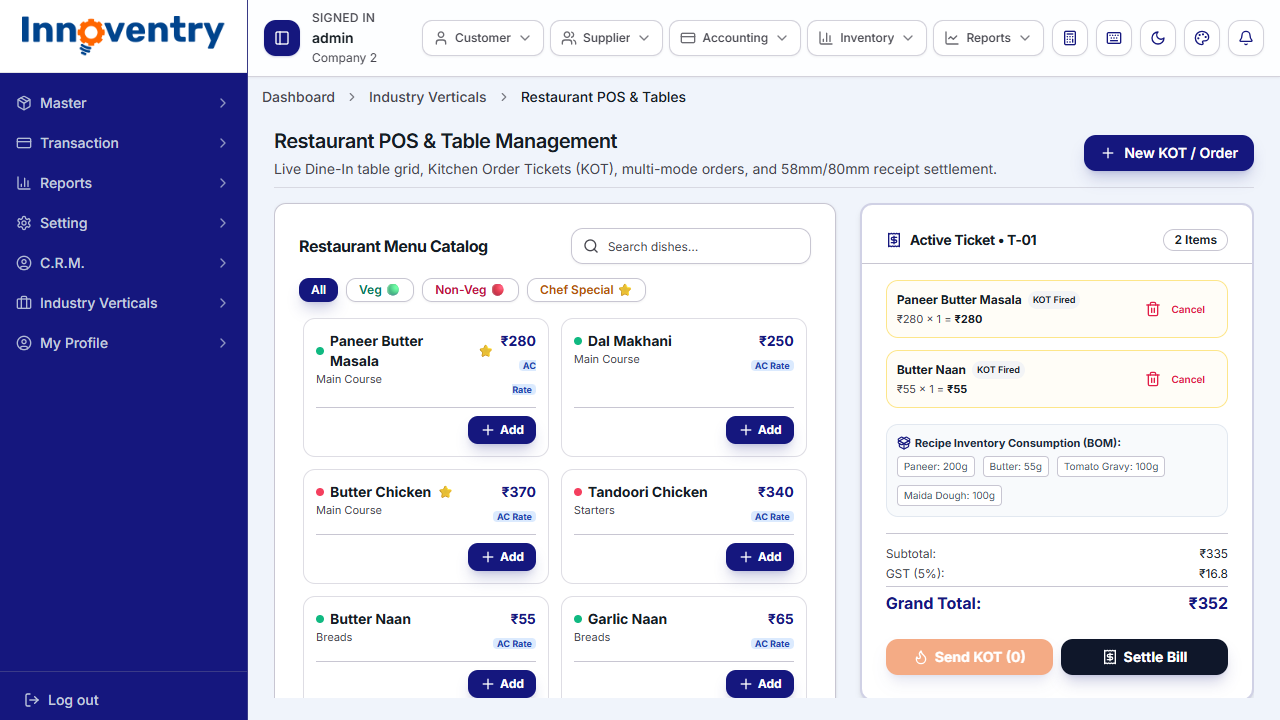
When an order is created—either on the desktop POS, web terminal, or the Captain Mobile App—the software automatically checks the table's section and applies the correct tier rate:
- Selecting Table T-102 (AC Section) pulls the AC rate of ₹290.00.
- Selecting Table G-04 (Garden Section) pulls the Regular rate of ₹260.00.
- The active price tier badge appears visibly on the order header, giving the cashier and captain complete clarity.
5. Intelligent Price Fallback Logic
What happens if you configure an AC price for main curries but not for standard beverages (like mineral water or canned sodas)?
⚠ Automatic Fallback Principle:
If an item does not have an explicit price configured for the active tier (e.g., no AC rate entered), Innoventry automatically falls back to the base Regular Price. Staff never encounter pricing errors or blank line items during peak service rush.
6. Managing Takeaway and Parcel Orders
For walk-in parcel orders or quick counter pickups:
- Click New Takeaway Order on the POS toolbar.
- Innoventry automatically selects the Takeaway Pricing Tier.
- Add items and enter customer contact details for SMS invoice delivery.
- Settle payment immediately at the counter.